How to Scan a QR Code – iPhone, Android & PC
Scan QR codes with your camera, a photo, or a screenshot.

Drop images or PDFs here
Multiple files · Common image formats & PDFs · Max 25 MB per file
Click "Open camera" & point the QR toward it.
Scan results
No QR codes scanned yet
Decoded links and text will appear here.
How to scan a QR code on iPhone
Use the built-in Camera or Code Scanner
- Open Camera from the Home Screen, Lock Screen, or Control Center and select Photo mode.
- Point the camera at the code, keeping the entire square in view. Hold still until a link or action appears. You can leave the shutter button alone.
- Check the destination shown on screen, then tap it if you want to open it.
For a dedicated scanner, open Control Center and tap Scan Code. If the control is missing, open the Control Center controls gallery and add it. The scanner’s flashlight can help in dim light. The live view needs to see the code in front of the lens. If it’s in a message, email, or web page on the same iPhone, use the screenshot steps below.
Apple’s Camera and Control Center instructions · Apple’s current Camera illustration
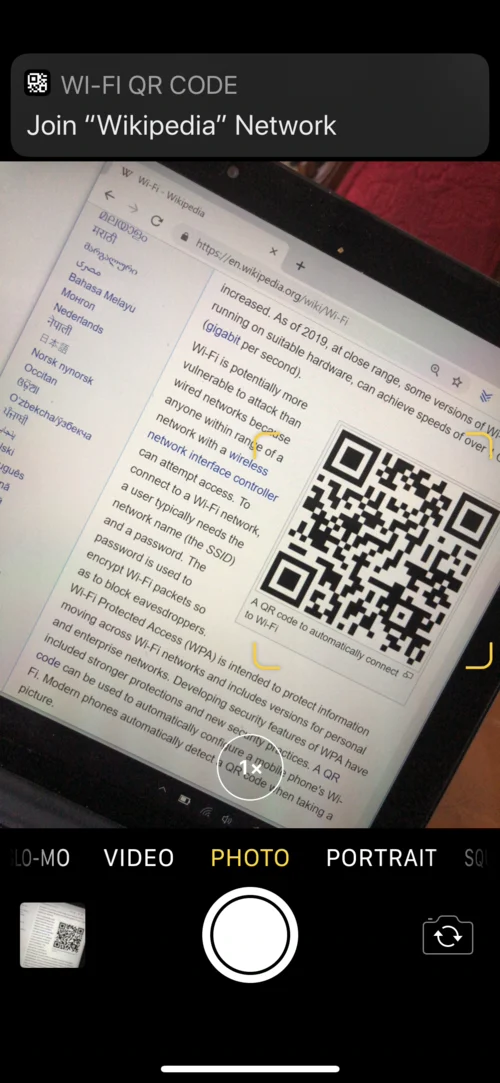
iPhone X showing a Wi-Fi QR action.
Resized and converted to WebP.

Use an online QR code scanner on iPhone in Safari
- Open The QR Scanner in Safari over HTTPS and select the Camera tab.
- Tap Open Camera. If Safari asks for permission, allow camera access for this site.
- Point the camera at the code and wait for Scan Results. If the result is a web address, use Copy to keep it or Visit to open it.
If you denied access earlier, open Safari’s page menu, look for Website Settings, and check the site’s Camera permission. Apple also lists a default camera setting under Settings → Apps → Safari → Camera, where you can select Ask, Deny, or Allow. If camera access is unavailable, select a saved image instead.
Apple’s Safari camera permission settings · WebKit’s camera access requirements
Scan a QR code already on your iPhone screen
If you’re wondering “How can I scan a QR code on the same iPhone?”, save the original image if you have it. Otherwise, take a screenshot that includes the whole code. On a Face ID iPhone, press the side button and volume up together and release them. On a Home button model, use Home with the side or top button, depending on your model.
Save the screenshot to Photos. In Safari, choose Images/PDFs in The QR Scanner, tap Browse Images & PDFs, and select the saved screenshot. Read the result in the browser.
Apple’s screenshot instructions by iPhone model
Or use our online scanner directly.
How to scan a QR code on Android
On a phone with built-in QR detection, open Camera, aim at the entire code, and wait for an action to appear. Camera features and setting names can vary by device. Here’s where to look on a Pixel or Samsung Galaxy.
- Google Pixel. If Camera shows no suggestion, open its settings and check that Camera scan suggestions is on. You can also open Quick Settings and choose Scan QR code.
- Samsung Galaxy. Use Photo mode. If you don’t get a result, turn on Scan QR codes in Camera settings or open the scanner from the Quick Settings panel.
Hold the phone steady until the camera focuses. In dim or reflective conditions, move to better light or change the angle while keeping the whole QR code in the frame.
Google Pixel Camera instructions · Samsung Camera and Quick Settings instructions with images

A phone aimed at a printed QR code at the Hamburg History Museum.

Or use our online scanner directly.
How to scan a QR code on a computer
Use a webcam on Windows or in a browser
On Windows, open the Camera app. If the Barcode button is available, select it, then hold the QR code in front of the webcam until it’s in focus. A website link can appear at the bottom of the app. On a PC or Mac, you can also open The QR Scanner, select Camera and allow the site to use your webcam.
If the camera won’t start, check the site’s camera permission in your browser and make sure the right webcam is selected. On a Mac using Safari, open Safari → Settings → Websites → Camera to check access for the site.
Microsoft’s Windows Camera guide · Google’s Chrome camera permissions · Apple’s macOS camera access guide
Read a QR code already on your computer
For a code in an image, a screenshot, or a PDF, select Upload instead of opening the webcam. Select or drop the file into the scanner and read the decoded content under Scan results. The result can be copied before opening any link.

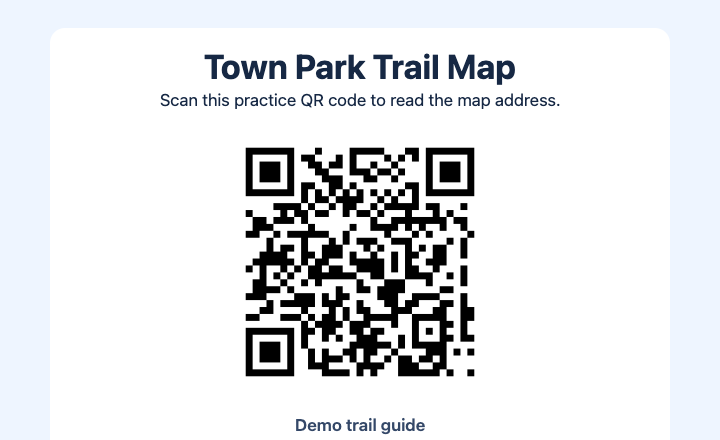
Actual scan result from The QR Scanner, using the sample trail map.
Or use our online scanner directly.
How to scan a QR code from an image or screenshot
Use file-based QR reading for a photo, a screenshot from a chat, or a code embedded in a document. On Android, you can also open a saved image in Google Photos and look under More → Google Lens.
- Save the image or capture the screen with the complete QR code visible.
- Keep the blank space around the code when cropping. If the code is tiny or blurry, start with the original image or capture a larger, sharper view.
- Choose Images/PDFs in the scanner, select your file, and check the decoded text or link in Scan Results.
Google Photos and Lens instructions · DENSO WAVE’s QR reading troubleshooting guide

The practice screenshot decodes to https://example.com/trail-map.
Or use our online scanner directly.