
How to convert a QR code to a link
Choose where the code is
Use Camera for a printed code in front of you, or select Upload for a picture or document already on your device.
Read the QR code as a URL
Check the domain shown in Scan results, then use Copy to inspect the full address before sharing it.
Open, copy, or share
Choose Open link to open the address or Copy to paste it into a message, note, or browser. For multiple results, choose the one you want to share.
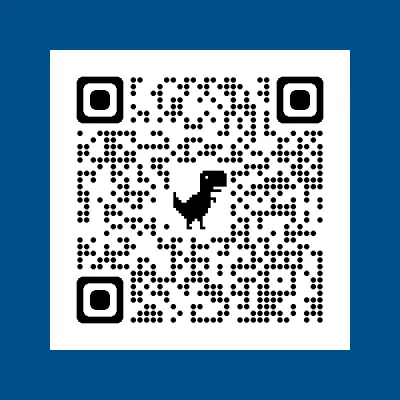
Scan this example to read https://digital.gov/.
Supported formats
The converter accepts PNG, JPG/JPEG, WebP, and PDF files, as well as live scans from your camera. For a QR code already on your screen, upload a screenshot using the same device.
Why a scan may not give you a clickable URL
If nothing appears, make sure the whole QR code is in the frame and try a sharper file or better lighting. If the result is text, a Wi-Fi setting, or a contact, there may be no website to open. If Open link opens an error page, the destination itself may have moved or expired. Copy the address to check it with whoever supplied the code.
Frequently asked questions
It reads the destination the QR code already contains. It does not replace the address in the original code or create a new short link.
Scan it, check the displayed URL, and choose Copy. Paste that address into your email or message. The person receiving it can follow the URL without scanning the original code.
Choose Camera, allow camera access, and hold the full code in view. Use Open link once the scanner shows a web address you recognize.
Yes. Copy the text from Scan results or choose TXT from the export menu. Only a code that contains a web address can give you a website to open.