
How it works
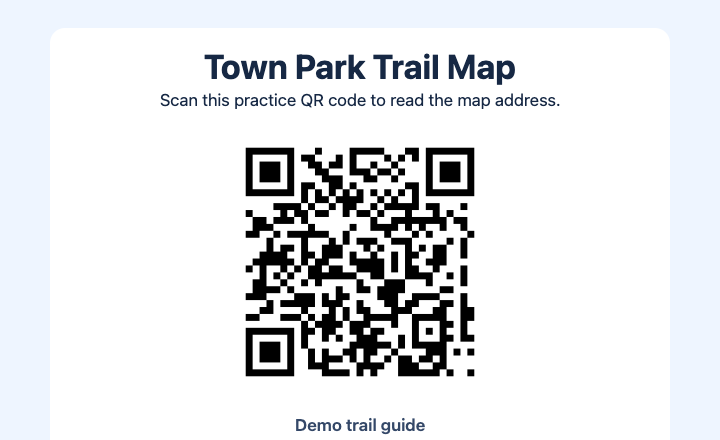
1. Save a screenshot or photo
Capture the whole QR code, including the blank margin around it. If the code is on a website, save the original image when you can. If it is part of a larger page, zoom in before taking the screenshot so the small squares have enough detail. On a phone, save the screenshot to your photo library so you can select it from the browser.
2. Upload the image
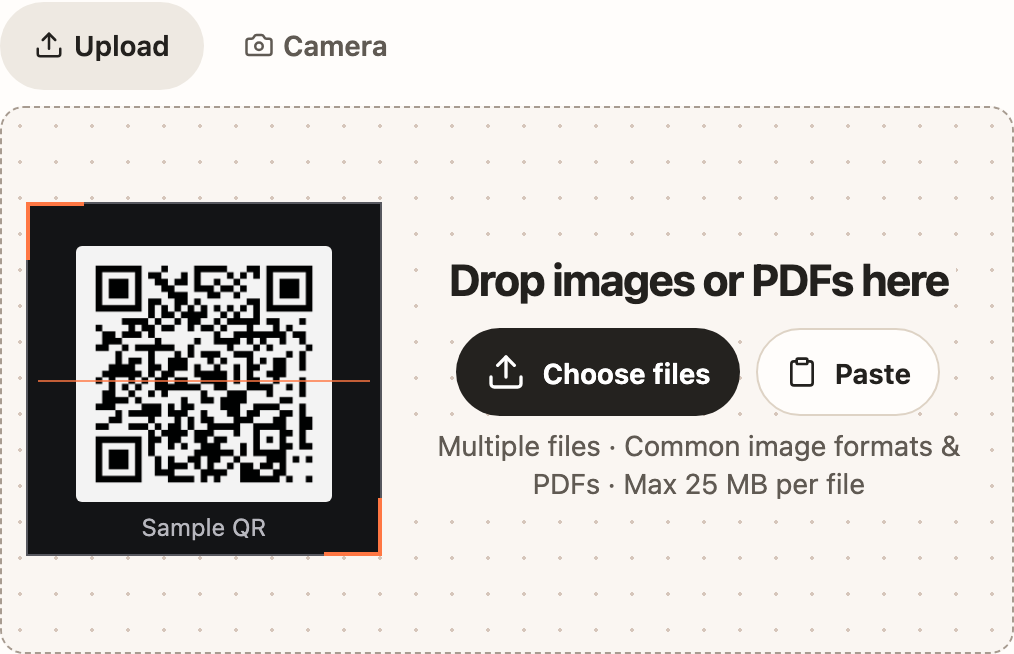
Choose Upload above, then select the file you saved. On a computer, you can also drag it into the upload area. The same workflow lets you scan a QR code in an image that is already on your device. If the photo contains several codes, keep a separate cropped copy of the one you need so you can match the result to the right source.
3. Check and copy the link
The result card shows the website’s domain. Use Copy to check or share the full address without opening it. Choose Open link when you’re ready to visit the site.
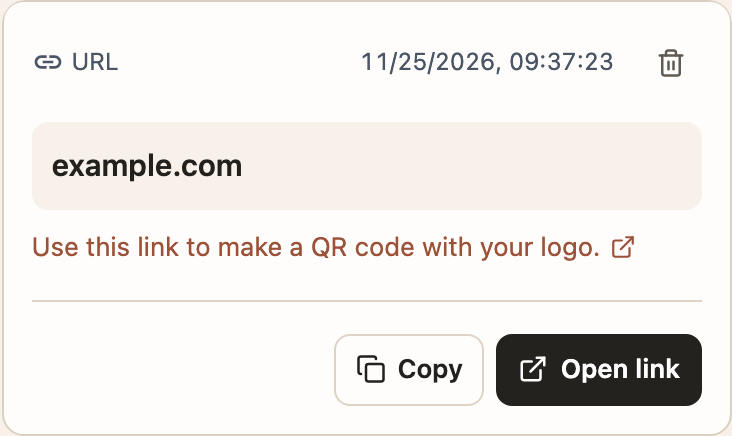


You can try the workflow with the sample screenshot shown in the first step. Download it, upload it above, and compare the result to the example address shown here. This example uses a reserved domain for practice. You can copy the address and check it against the expected text without opening any site.
https://example.com/trail-mapWhere you can scan a QR code from a picture
If the same QR code is available in several forms, choose the version closest to the original artwork. A full image usually preserves more detail than a screenshot of a thumbnail. A photograph is useful when the only copy is printed. Keeping one clean source file per code also makes it easier to check which result belongs to which image later.
A code on a web page
Right-click a standalone QR image and choose Save Image As, if the browser offers it. If the code is part of a poster, a slide, or a page preview, use your browser or system screenshot tool instead. Capture just the part of the page that contains the code and its margin. Then choose the saved image in the extractor, even if you only have one screen.
A photo in your phone's library
Open the image picker and select the photo or screenshot you saved. If you photographed a sign, start with the original file rather than a thumbnail that was resized for sharing. Check that all four corners are visible before you upload. This is useful when your phone is the only device you have and the QR code is already on that screen.
A QR code embedded in a PDF
Upload the PDF directly and look for the result from the page with the code. For a long catalogue or a slide deck, use your PDF viewer to save the relevant pages into a smaller file. A single page often makes it easier to match the decoded result to its source, especially when several different posters or offers are in the same document.
A forwarded image in a chat
Save the actual attachment, or ask the sender for the original image if the chat preview looks soft. Repeated forwarding, compression, or screenshots of screenshots can make the small squares blend together. If the image has a label such as a menu or route name, check that the decoded domain matches what you expected before choosing Open link.
Several photos saved in an album or folder
Select the relevant images together in the file picker when your device supports multiple selection. Review the results before exporting or sending them, particularly when different images show similar codes. If you only need one address out of the collection, it can be quicker to upload the clearest photo first and copy the result as soon as you find it.
Supported formats
Use PNG, JPG or JPEG, WebP, or PDF. PNG is a good choice for screenshots because the edges of the code stay sharp. If an image from your phone will not load, export it as a JPEG or take a fresh screenshot and upload that file.
For multi-page PDFs, the browser scans up to the first 100 pages of a file and accepts PDFs up to 25 MiB. If the code is on a later page, export that page separately before uploading. When comparing a screenshot with a PDF, start with the PDF if you have it. A screenshot can lose detail when the original page was zoomed out or the capture was resized.
Why won't this QR code scan?
Start by distinguishing a failed scan from a working scan with an unexpected result. If Scan results is empty, change the source image and try again. If it shows a readable string but not a website, check whether the code actually contains a URL. If a URL is present, decoding has worked, even if a browser cannot load that address.
1. The image is too blurry
Try the original photo instead of a compressed copy. If you can take the picture again, hold the camera steady and focus on the code before pressing the shutter. Enlarging a blurry image usually cannot recover detail that was missing in the first place. A new, sharper capture is more useful.
2. A corner or the margin was cropped
Select the source file again and make a larger crop that includes the complete square. Leave the blank band around it in the frame. Removing that margin or cutting off one corner can make the code hard to detect even when the remaining part looks sharp.
3. The surface reflects light
Move away from the reflection, turn off the flash, or change the lighting. For a glossy sign, take a second photo at a slight angle so the glare moves off the code. If the reflection covers the original picture itself, request a clean image or a PDF from the publisher.
4. Several codes are in one image
Crop a copy around the code you want and keep the original image. Use the label beside that code to tell it apart from nearby codes. If the first scan shows more than one result, compare the addresses with those labels before copying. Separate crops also help when one code is much smaller than the others.
5. The light and dark areas look too similar
Choose a version with stronger contrast. Pale foreground colours, patterned backgrounds, shadows, and very dark screenshots can make neighbouring squares difficult to distinguish. Increase the contrast in a copy only if the code remains clear afterwards. If possible, ask for a plain dark-on-light version.
6. The code reads, but the destination has expired
If Scan results shows a URL and the destination returns an error, the code was decoded. An event page may have closed or a short link may no longer redirect. Copy the full URL and confirm it with the issuer. Scanning the same static code again will not restore a website that is gone.
Scanning a saved image vs. using your camera
Upload a picture when the QR code is already in a file, on the screen of the same device, or embedded in a PDF. Use live camera scanning for a printed label or a code displayed on another screen in front of you. The camera uses live video and requires permission, while the image workflow starts with the file you choose.
For example, if a colleague sends you a screenshot of a poster during a call, save the attachment and upload it. If you see the printed poster in a hallway, a live camera scan is usually quicker than taking a photo and then selecting it. Use the image method when the scanner cannot reach your camera or you prefer to work from a file.

A visitor scans a printed QR code at the Hamburg History Museum.

Frequently asked questions
Yes. Save the picture to your phone and select it in Upload. A screenshot works too. You do not have to point the camera at your own screen or move the image to a second device. Leave room around the code when you take the screenshot so the scanner can see all of it.